![tns_logo (1).png]](https://support.tchatnsign.com/hs-fs/hubfs/tns_logo%20(1).png?width=40&height=40&name=tns_logo%20(1).png)
Why enable multi-factor authentication?
Multi-factor authentication (MFA) adds an essential security layer to your Tchat N Sign account. Even if your password is compromised, access remains blocked without the validation code sent to your phone.
Key benefits:
➢ Enhanced protection for your documents and signature data
➢ Compliance with financial industry security requirements
➢ Peace of mind when managing your confidential files
Configuration procedure
1. Access the Settings menu
Click on the gear icon in the top right corner of your screen, then select Settings.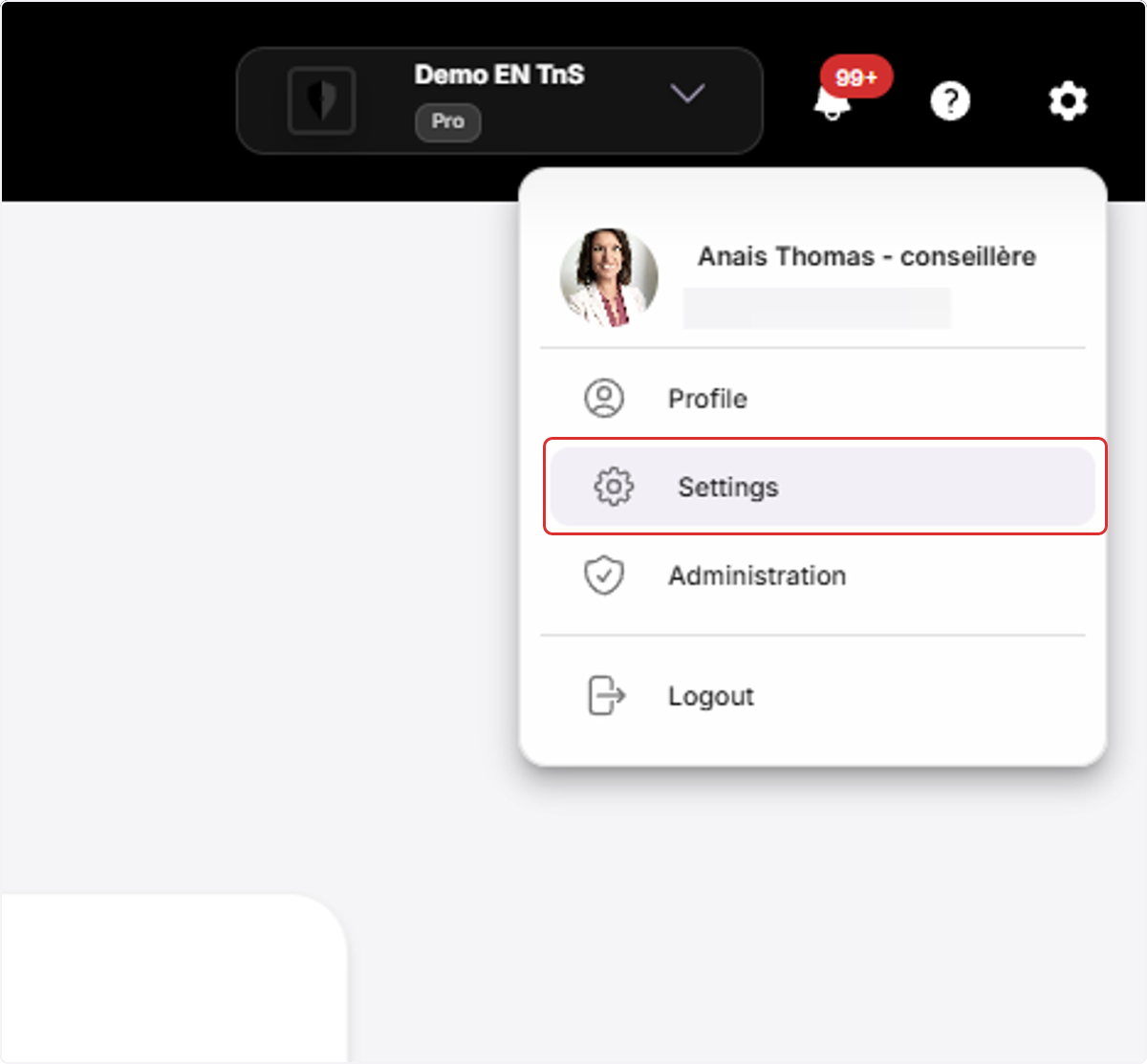
2. Access security settings
In the left menu, click on Security & Privacy, then on the Multi-Factor Authentication option.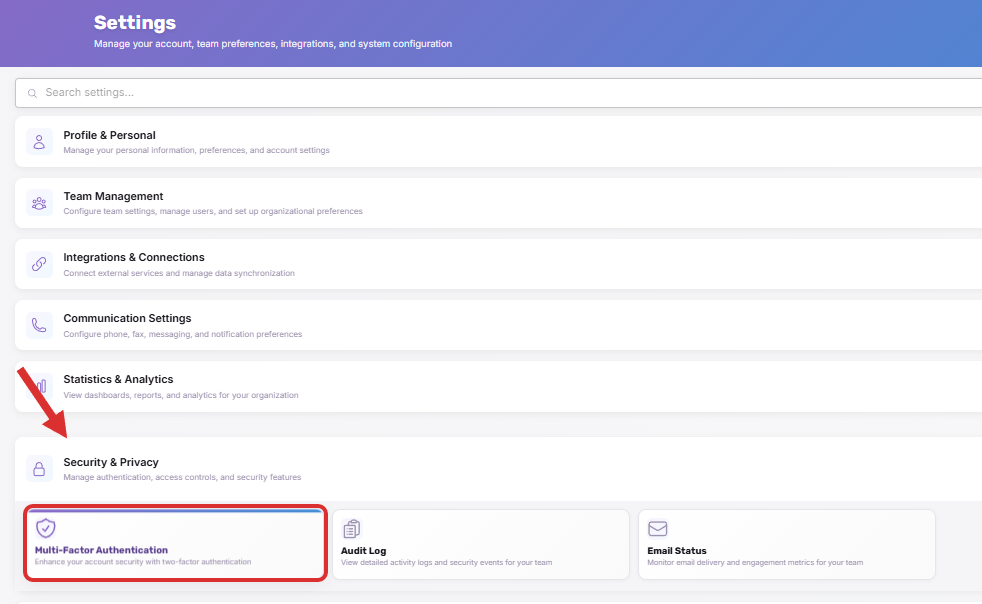
3. Verify your phone number
The system displays the phone number where the authentication code will be sent. Make sure it is the correct number before proceeding.
If you need to change this number: Go to Settings / Profile & Personal / Profile Settings to update it.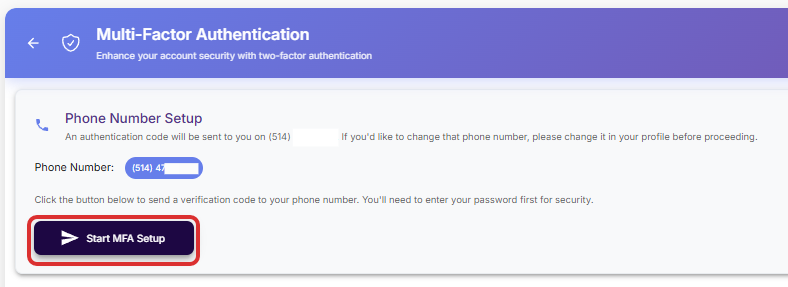
4. Confirm with your password
Enter the password you normally use to log into Tchat N Sign, then click Send.
Your multi-factor authentication is now active. Each time you log in, you will receive a validation code by SMS.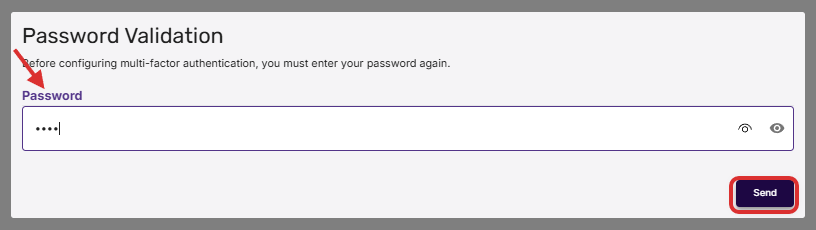
Disabling authentication
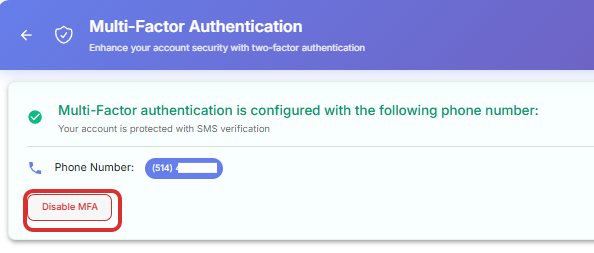
You can easily Disable Multi-Factor Authentification by clicking on Disable MFA